WoodsTrust Documentation
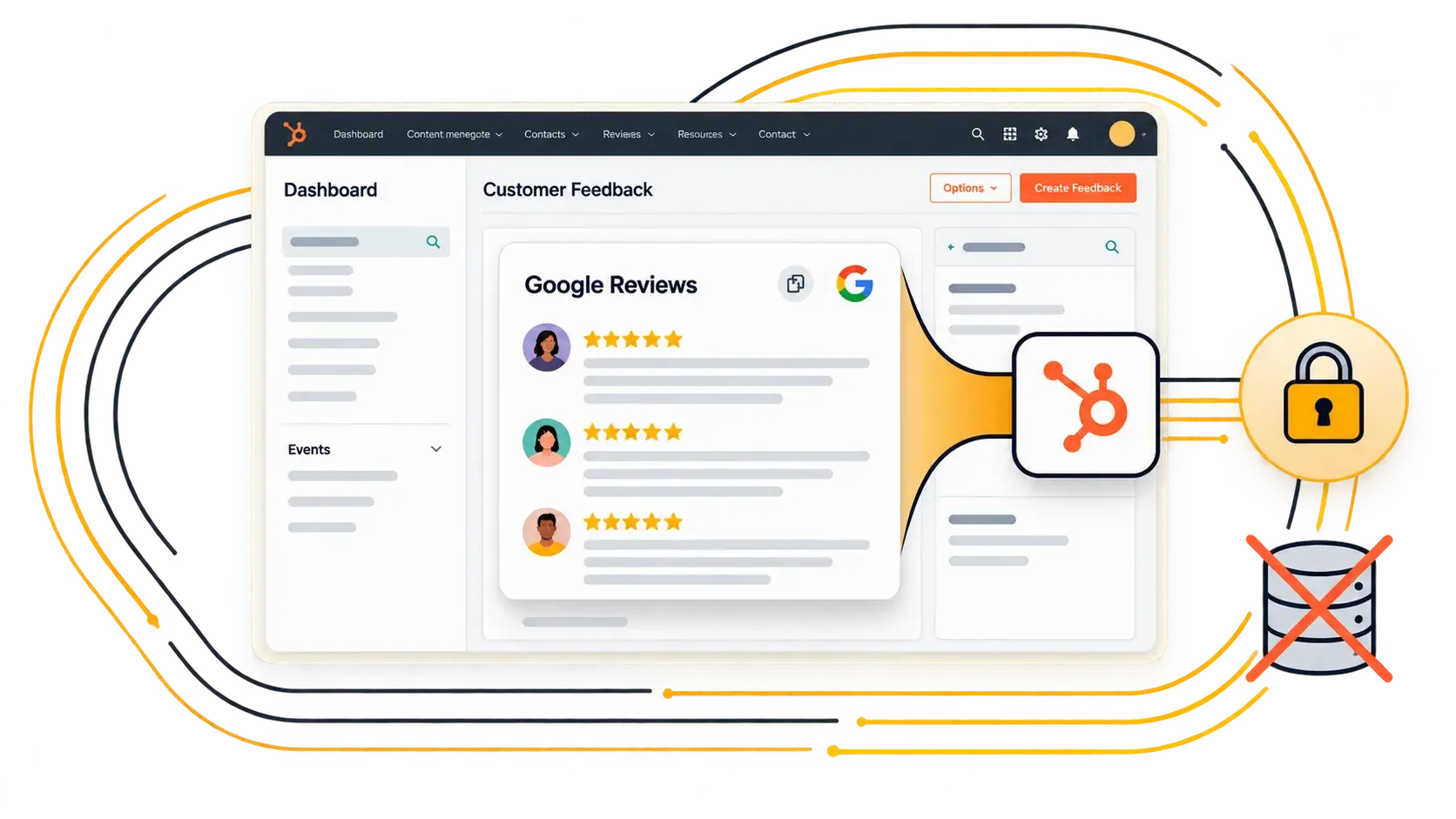
Complete guide to installing, configuring, and using WoodsTrust for HubSpot.
1. Overview
WoodsTrust is a HubSpot-native app that connects your Google Business Profile with HubSpot, automatically syncs your Google Reviews, and lets you display them on your website.
Build trust, showcase customer feedback, and improve conversions — all without coding.
Key Features
- One-click Google Business Profile connection
- Automatic Google Review syncing
- Customizable review widget
- Mobile-responsive design
- Multiple Google Business Profile support
- Easy HubSpot website integration
- No coding required
2. Prerequisites
Before installing WoodsTrust, make sure you have:
- A HubSpot account with website or CMS access
- A verified Google Business Profile
- Admin access to your HubSpot portal
- Access to the Google account that manages your Business Profile
- A HubSpot website or CMS where you want to display reviews
3. Installation
Step 1: Open HubSpot Marketplace
Go to the HubSpot Marketplace and search for WoodsTrust.
Step 2: Install WoodsTrust
Click Install app to begin the installation process.
Step 3: Review Permissions
Review the permissions requested by WoodsTrust and approve them.
Step 4: Complete OAuth Authorization
Follow the on-screen instructions to complete the OAuth authorization.
Installation Complete
Once authorization is complete, WoodsTrust will be available in your HubSpot portal.
Pro Tip: The installation process takes less than 2 minutes.
4. Connect Your Google Business Profile
After installing WoodsTrust, connect your Google Business Profile to start syncing reviews.
- Open the WoodsTrust Dashboard in your HubSpot portal.
- Click Connect Google Account.
- Select the Google account that manages your Business Profile.
- Select the Business Profile or profiles you want to connect.
- Click Allow to grant the required permissions.
- Return to the WoodsTrust Dashboard.
Your Google Reviews will automatically begin syncing with HubSpot.
Note: Reviews may take a few minutes to appear after the initial connection.
5. Customize Your Review Widget
Customize the WoodsTrust Review Widget to match your website and brand.
Appearance
Customize:
- Primary colour
- Secondary colour
- Text colour
- Background colour
Layout
Choose the layout that works best for your website:
- Grid
- Carousel
- List
Review Filters
Control which reviews are displayed using filters such as:
- Star rating
- Keywords
- Review content
For example, you can choose to display only reviews with 4 or more stars.
Number of Reviews
Choose how many reviews you want to display on your website.
Avatar Style
Choose from different avatar styles:
- Rounded
- Square
- Initials
All changes can be previewed before saving, making it easy to create a widget that fits your website perfectly.
6. Add WoodsTrust to Your Website
There are two ways to add WoodsTrust to your HubSpot website.
Method A: HubSpot Module — Recommended
The HubSpot module is the easiest way to add your reviews.
- Open the HubSpot page editor.
- Edit the page where you want to display your reviews.
- Find the WoodsTrust Review Widget module.
- Drag the module onto your page.
- Configure the widget settings from the sidebar.
- Preview your changes.
- Publish the page.
Method B: Embed Code
You can also add WoodsTrust using an embed code.
<div id="woodstrust-widget" data-location-id="YOUR_LOCATION_ID"></div> <script src="https://woodstrust.digitalwoods.io/widget.js" async></script> Replace YOUR_LOCATION_ID with the Business Profile Location ID available in your WoodsTrust Dashboard.
7. Manage Your Reviews
The WoodsTrust Dashboard gives you everything you need to manage and monitor your Google Reviews.
You can:
- View all synced Google Reviews in one place
- Filter reviews by rating
- Filter reviews by date
- Search reviews using keywords
- Respond to reviews through Google
- Track review trends
- Monitor review sentiment
- Export reviews as CSV
8. Frequently Asked Questions
How much does WoodsTrust cost?
WoodsTrust offers a free plan with basic features. Premium plans start at $10/month and include unlimited reviews and advanced customization options.
How often are reviews synced?
Reviews are automatically synced every 6 hours. You can also manually trigger a sync from the WoodsTrust Dashboard whenever needed.
Will WoodsTrust slow down my website?
No. The WoodsTrust widget loads asynchronously after your main page content, helping minimize its impact on page loading and performance.
Can I connect multiple Google Business locations?
Yes. WoodsTrust supports multiple Google Business Profiles. You can connect multiple locations and choose whether to display reviews from one location or multiple locations.
Is the widget mobile-friendly?
Yes. The WoodsTrust Review Widget is fully responsive and works across desktops, tablets, and mobile devices.
9. Troubleshooting
No Reviews Are Showing
Possible solution:
- Confirm that your Google Business Profile has at least one review.
- Open the WoodsTrust Dashboard.
- Trigger a manual sync.
- Wait a few minutes for the reviews to appear.
- Refresh your HubSpot page.
OAuth Error When Connecting Google
Possible solution:
- Make sure you are using the correct Google account.
- Confirm that the account has access to the Google Business Profile.
- Check that the Business Profile is verified.
- Clear your browser cache and try connecting again.
Widget Is Not Appearing on the Website
Possible solution:
- Verify that the WoodsTrust module or embed code has been added correctly.
- Confirm that the Location ID is correct.
- Make sure the page has been published.
- Clear the HubSpot cache and refresh the page.
- Check that the connected Google Business Profile is active.
10. Uninstall WoodsTrust
If you need to remove WoodsTrust from your HubSpot portal:
- Go to Settings → Apps in your HubSpot portal.
- Find WoodsTrust in your connected apps.
- Click Uninstall.
- Review the uninstall information.
- Confirm the uninstallation.
Important: Uninstalling WoodsTrust permanently removes the synced review data stored in your HubSpot portal. This action cannot be undone.
Need Additional Help?
Our support team is here to help you with installation, Google Business Profile connections, widget configuration, and troubleshooting.
.png)